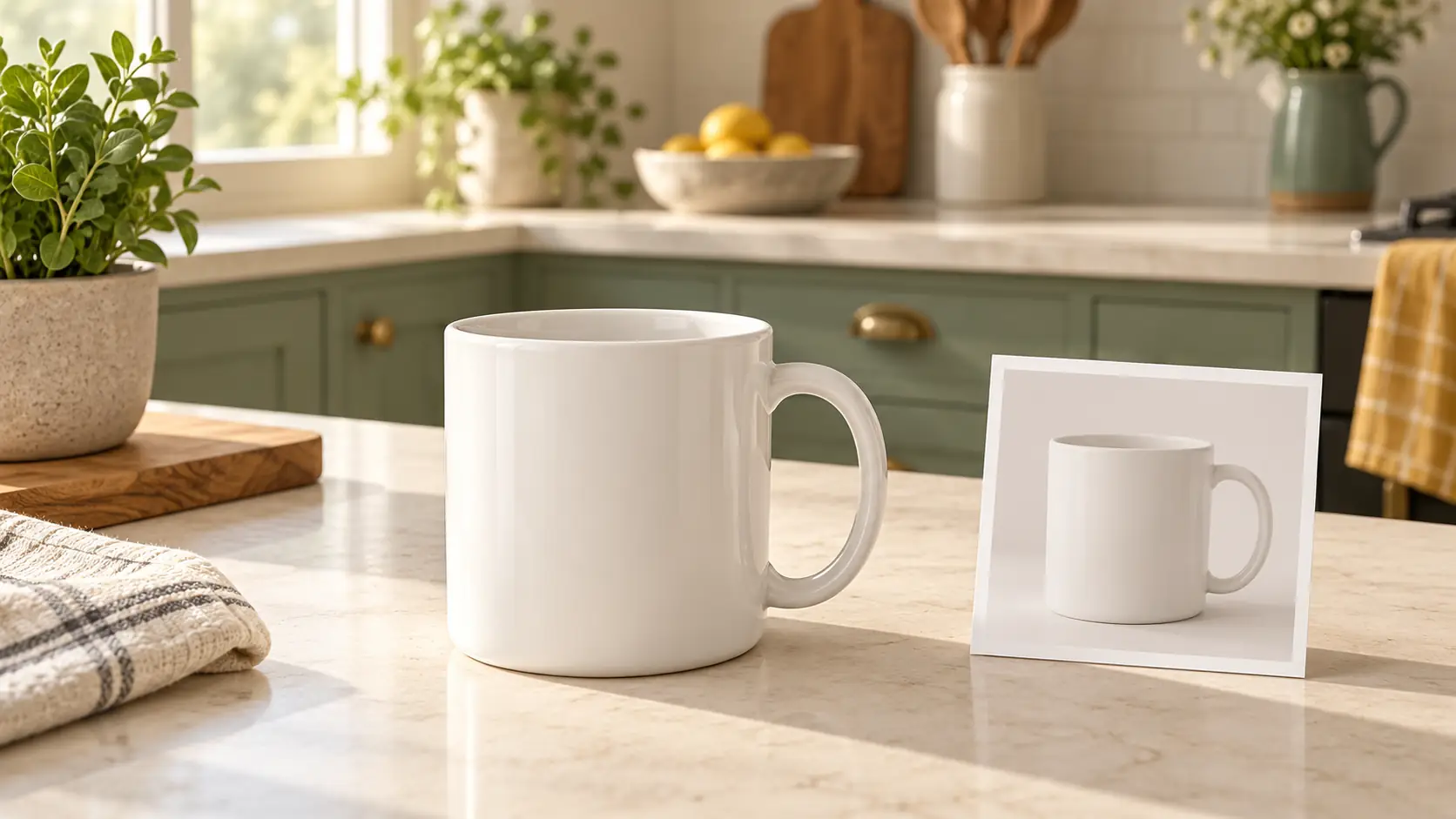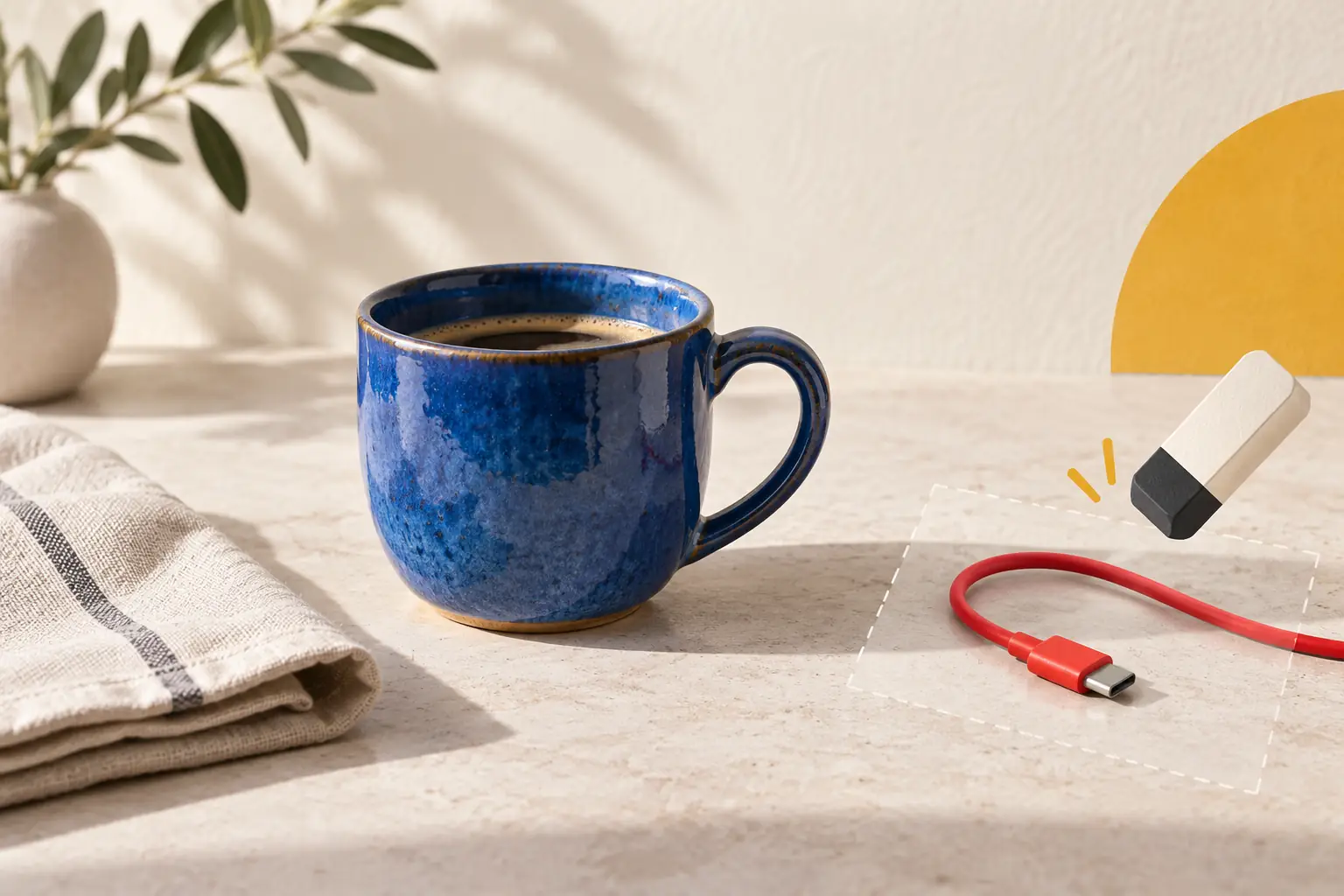
The red cable beside the cup draws attention, although the post calls for a calm still life. If cropping would cut off part of the cup, you can try removing just the cable. In GPT Images through Yes AI you describe this edit in text: the official page explicitly lists object removal and the option to specify details that should be preserved.
Consider an illustrative photo: a blue ceramic cup on a pale stone tabletop, a beige napkin on the left and a red cable on the right. The aim is to keep the same scene and clear a small area of the table. The example below is an editing brief, not a report of testing the service.
Identify what lies beneath the unwanted object
Look at where the cable runs. On an open area of the table, it will need to be replaced with a plausible stone texture. If it crosses the cup's handle, a pattern on the cup or an important inscription, the task changes: part of the object itself will have to be recreated. The resulting detail may look convincing without matching the real one.
This is a significant distinction in product photography. Choose another shot if removing the object would affect features a buyer uses to select the item.
Keep the original. Before starting, note the visible cable, its connector, shadow and reflections: after editing, check the whole trace it left, not just the red line. A cable near the edge may be easier to remove with a slight crop.
Specify the object, its location and the intended replacement
Sign in to Yes AI, open GPT Images and attach the original photograph using a supported method. You need an account to submit a task; check the available settings and the terms for the operation before starting. For a general introduction to the platform, see our Yes AI review.
The phrase “remove everything unnecessary” lets the model choose for you. Instead, identify one object, its position and what should occupy the cleared area:
Remove the red cable to the right of the blue ceramic cup, including all visible wire, the connector and its shadow. Continue the pale stone tabletop in its place, matching the fine texture and lighting. Preserve the cup, its handle, colour, position and size in the frame. Keep the original camera angle, background, beige napkin and the cup's own shadow. Do not add new objects or change the composition.
The distinction between the shadows matters here: remove the cable's shadow while preserving the one that grounds the cup on the surface. Describe the visible features of your own photo; a description of a stone surface would, of course, be wrong for a wooden table.
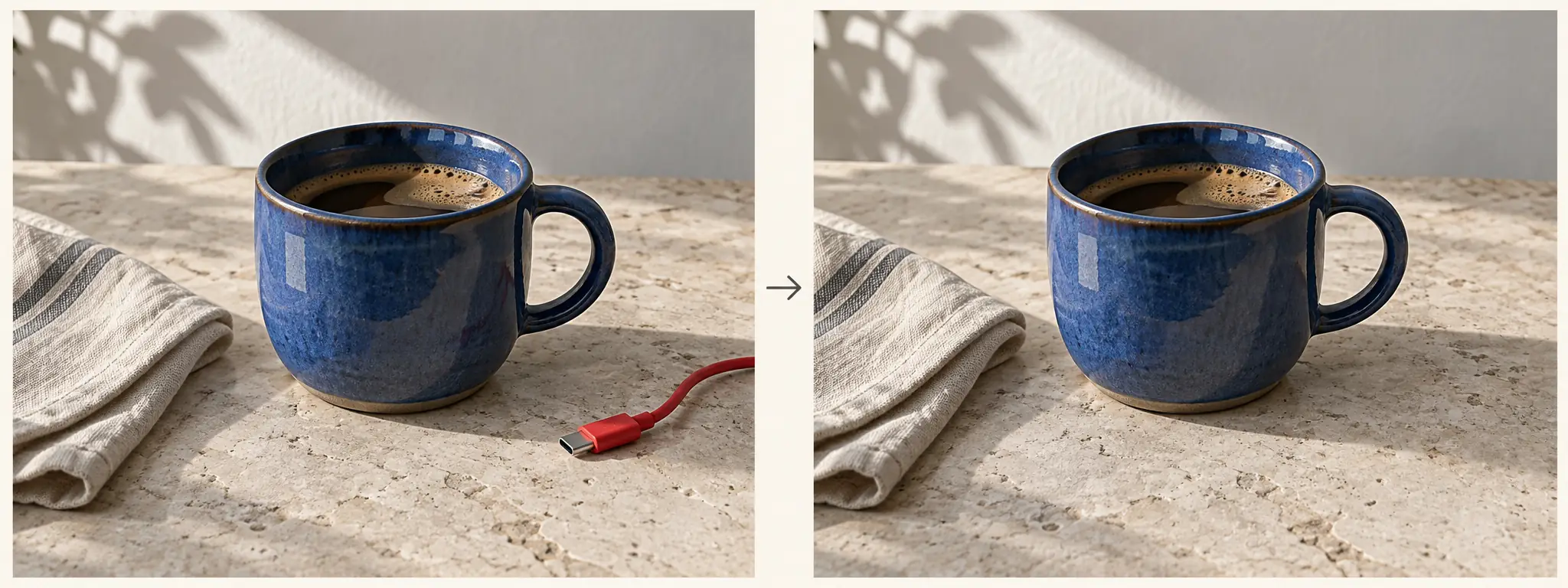
The diagram shows the intended edit. A written constraint helps explain the task, but does not guarantee that the rest of the image will remain unchanged.
Check the removal area and the rest of the frame
Open the original and the result side by side. First locate where the connector was and the frame edge where the cable ran out of view: it is easy to miss a short red fragment there. Then inspect the entire cleared area.
- Texture. Does the stone texture continue naturally, without a smooth patch, repeating patterns or a visible seam?
- Light. Has the cable's shadow disappeared? Has a pale halo or dark stripe appeared in its place?
- Preserved objects. Compare the cup's handle and rim, its position relative to the napkin, the highlight and the contact shadow.
Check areas you did not ask to change as well. A successfully filled patch of table does not mean the whole image is ready to publish. After inspecting it up close, view it at its final size: does the patch draw more attention than the cable did?
How to refine an unsuccessful edit
If a red tip remains near the bottom edge, identify that specific detail: “Remove the remaining red cable fragment at the bottom right; continue the surrounding table texture.” Use the appropriate original or edited image, depending on the available mode. If the cup itself has changed, return to the original and make the constraints more precise: an attractive new silhouette does not solve the original task.
Do not accumulate edits without checking them: compare every version with the original file. If important details must not be redrawn, controlled compositing in an image editor is more suitable. For a different task—completely changing an object's surroundings—see our separate guide to replacing a background in Nano Banana.