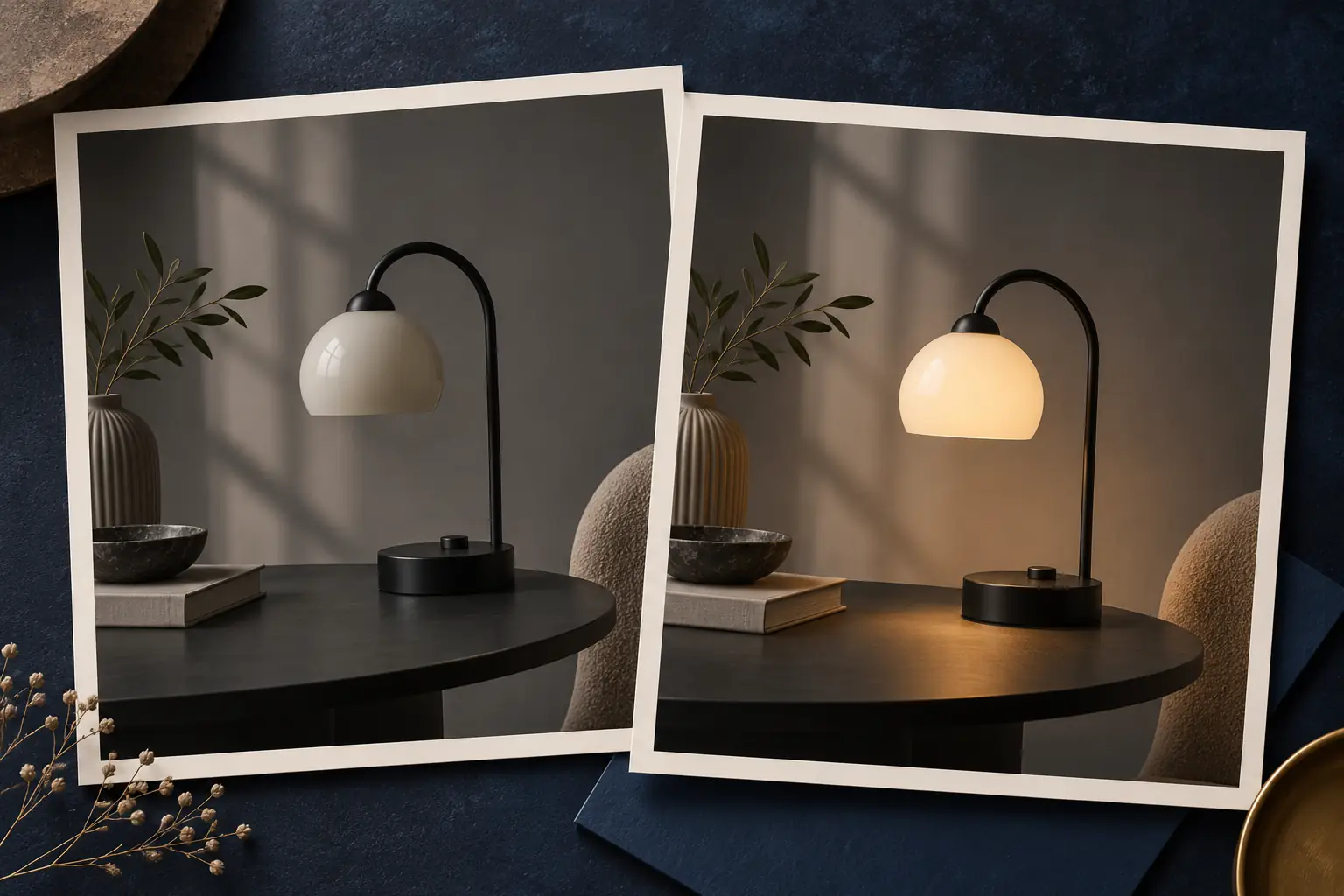
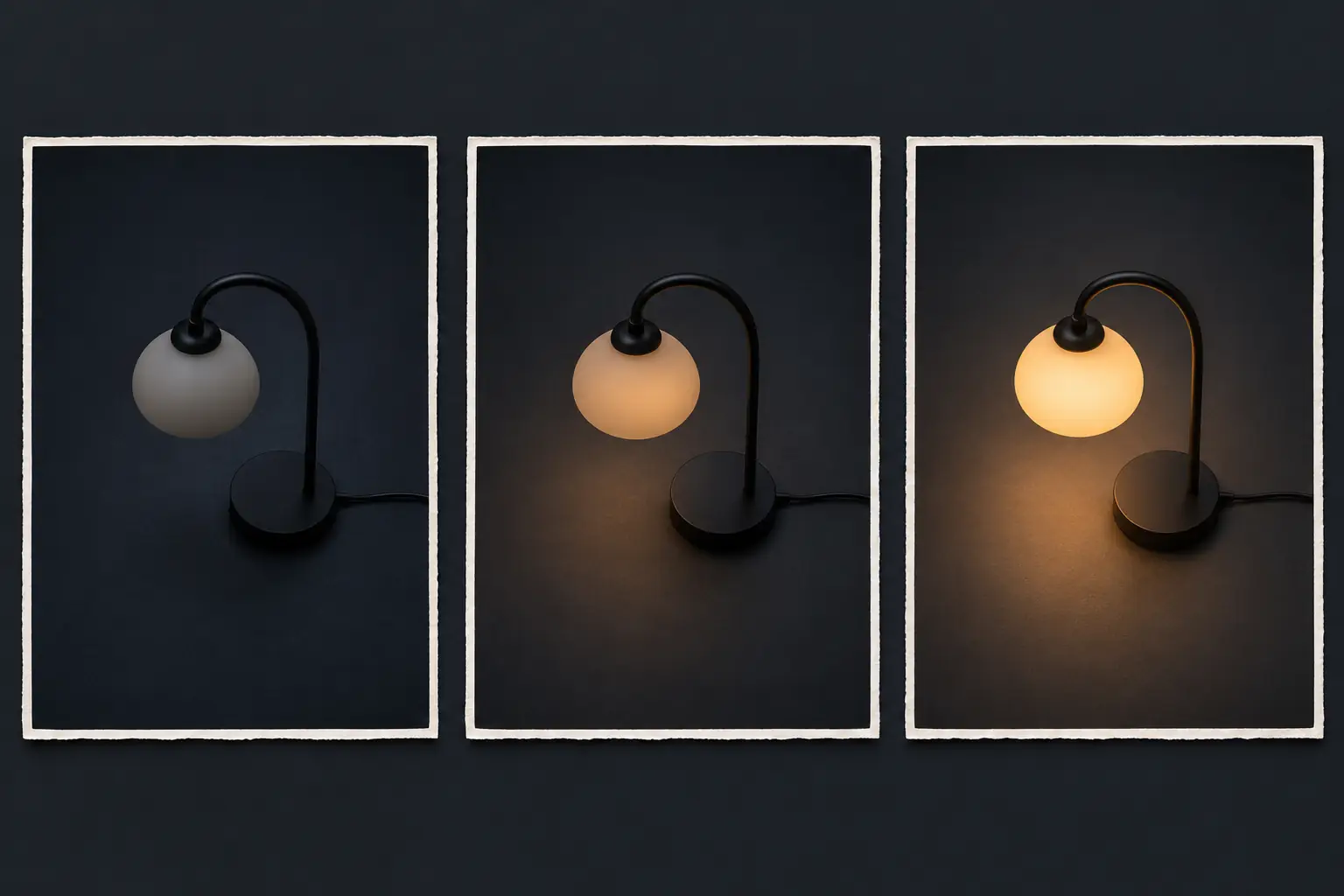
Imagine a short lighting clip with two states of the same scene. The desk lamp starts off. By the end it lights the desk, with the same shade shape and camera angle. Take a photo of each state. In Veo you can use those photos as the first and last frames and describe the action between them in a prompt.
Photograph both frames from the same position
Put the camera on a stand and photograph the lamp while it is off. Switch it on and take a second photo without moving the camera or the objects. Leave enough ambient light to see the outline of the shade in the first shot. Check that both files have the same aspect ratio and framing.
If the edge of the desk shifts noticeably in the photo with the lamp on, take it again. A matching camera angle gives the model fewer changes to reconcile. In this example, only the lighting on the desk changes.
Upload two images and describe the transition
Open Veo 3.1 Fast in Yes AI. The model page describes two ways to start from a photo. You can supply the first frame alone or upload both. For the lamp scene, upload the unlit photo first and the lit photo last. Check the order of the thumbnails before generating.
Describe the action, camera position and sound in your prompt. Here is an example for this scene.
The camera stays still. The desk lamp does not move. A brief click sounds. The lamp comes on immediately afterward and warm light falls across the desk. Preserve the shape of the shade and the positions of the objects. The room is quiet.
Yes AI says Veo can generate audio, so you can describe the switch click in the prompt. Watch the finished video to check that the sound comes at the right moment. The same approach to setting the start and end of a shot is described in Google's Veo documentation.
Check the lighting and the shape of the lamp
Compare the beginning and end of the video with the reference photos. Then pause halfway through. Check the width of the shade, the position of the base on the desk and the direction of the shadow. The lamp stays recognizable when these details remain consistent throughout the scene.
If the whole room lights up when you only want the desk illuminated, describe where the light should fall. If the lamp base moves noticeably, check whether its position and size match in both photos. Change either an image or the prompt each time. That makes it easier to tell what affected the next version.
If the clip is part of a series, save both reference images and the prompt that worked. For an existing clip, see our separate guide to extending a video with Kling in Yes AI.