
A red bicycle beside a blue wall, with daisies in its front basket. The scene is immediately clear to someone who sees the photograph. For someone listening to the feed through a screen reader, those details need to be in the description. Otherwise, they may hear only generic words about a bicycle or objects in the street.
Instagram alternative text, or alt text, serves this purpose: putting the essential details of a photograph into words. Below, we explain where to add it, how it differs from a caption and how to write a description that is easy to listen to. No lists of search keywords or promises of extra reach.
Who needs alt-text and what does automation do
A screen reader speaks the app’s accessible elements aloud, allowing a blind person to read posts and navigate. A photograph alone does not tell the software what is happening in it: a text description is needed.
In Instagram’s help article on alternative text the service is described as creating alternative text automatically through object recognition. Authors can write their own version to describe the photograph more accurately. This is a separate field for screen-reader users, not the visible caption under the post.
Automation is useful as a safety net, but an author’s task can be subtler than recognising a collection of objects. In a workshop photograph, what matters is the joint between two parts, not simply a table and a pair of hands. Meta explains how automatic image descriptions work and recognizes the possibility of recognition errors. Therefore, the details that are essential for your publication are better described independently.
Where to add alternative text on Instagram
For Android, the official help offers this order before publishing a photo:
- Select or take a photo, go to editing and finish it.
- In the next step, open “More”.
- Select “Write Alt Text”, enter the description and tap “Done”.
- Go back to preparing the post and check the remaining fields before publishing.
For an existing photograph, open its options, select “Edit”, then “Edit Alt Text”. Enter the description and select “Done”. You do not need to upload the photograph again.
On a computer, the field is in the Accessibility section when preparing or editing a post. Item names and locations may differ between apps. If you cannot find it, open the help link above and select your device: Android instructions should not be applied literally to an iPhone.
First the subject, then the important details
Start by describing the photograph to someone who cannot see it. What should they picture? Choose the main subject, its action or position, and a few details essential to the meaning. This order helps avoid getting bogged down in listing everything in the frame.
A bicycle photo from our example may have the following description:
A red city bicycle stands beside a pale blue wall. White daisies fill its front basket; cobblestones lie beneath its wheels.
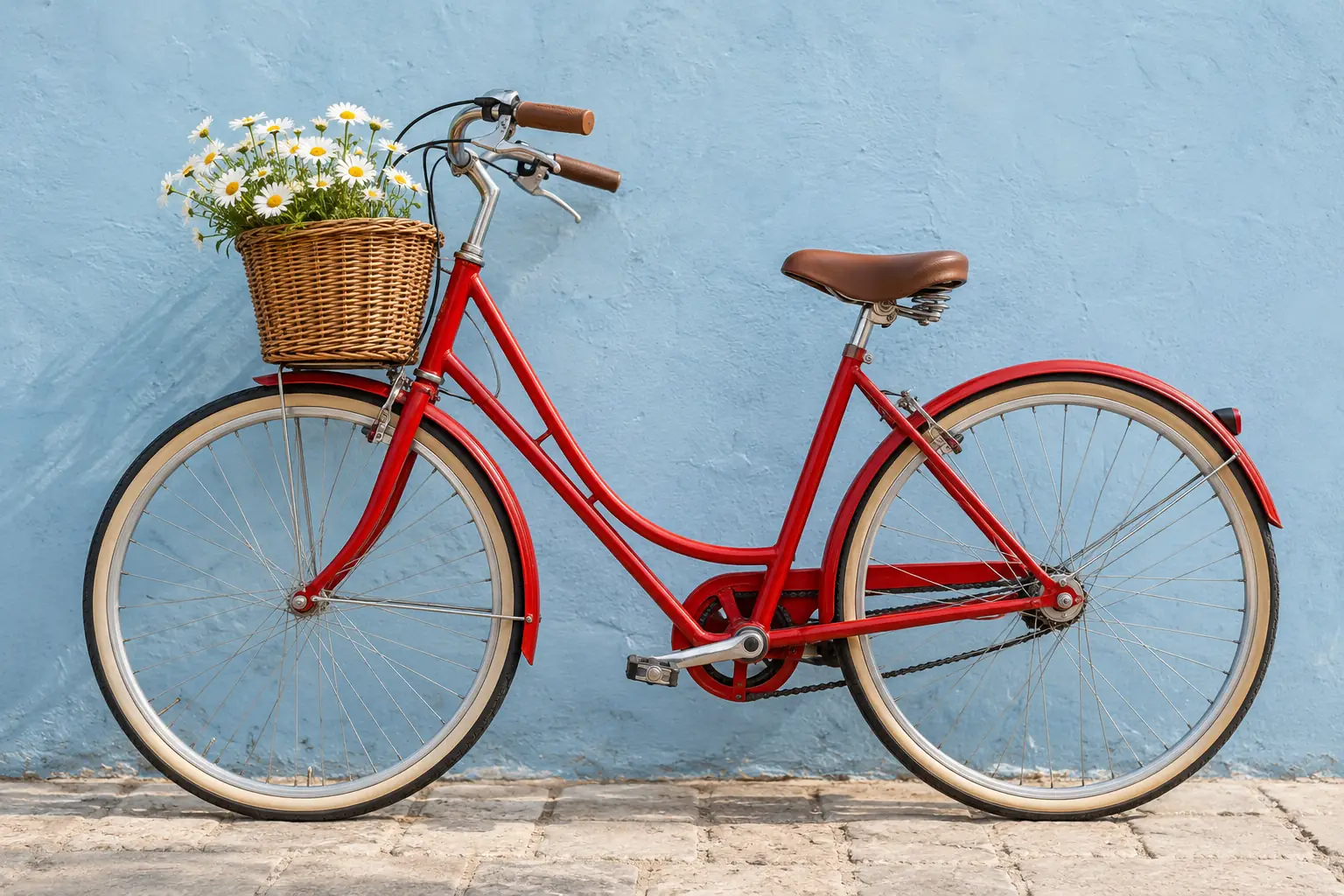
This gives us a subject, its surroundings and a distinctive detail. We did not name the city, because the scene does not identify it. We did not add “a cosy morning” or “a happy journey”: those are our feelings, not observations. If mood is the post’s subject, explore it in the ordinary caption.
“Bicycle, flowers, wall” breaks the connections between the objects. “Buy a red bicycle, city bicycle, best bicycles” moves away from the photograph entirely. Imagine hearing the description aloud before saving it.
There is no universal useful volume here. A simple scene can usually be summed up in one or two sentences; a complex comparison will need more explanations. Do not stretch the text for details and do not trim an important thought for the sake of someone else's recommendation about the number of characters.
The caption explains the story; alt text describes the image
Suppose the caption for that bicycle explains how to choose a city route without steep climbs. Do not copy the whole route into alt text: it is not shown in the photograph. Conversely, the caption “Our Saturday route” does not explain why the photograph shows a bicycle with a bouquet.
The two texts should complement each other. The caption carries the story, arguments, addresses and conditions. Alt text describes what must be seen in the image to understand the post. If the ordinary text already examines the scene in detail, do not repeat it word for word: supply the missing visual detail.
Guidance from the W3C guide to informative images is useful for editorial work too: the description depends on the image’s purpose in a particular piece. A bicycle photograph in an outing report and a close-up of its brake in a guide need different details. This is an accessibility principle, not a special Instagram promotion setting.
Handling lettering and multiple photographs
If an image contains important text, “information card” is not enough. Our fictional workshop notice says: “Bicycle drop-off: entrance from the courtyard.” Include that information in words; otherwise, someone will hear that a notice exists without learning where to go.
Repeat lengthy instructions in the ordinary post text. If an image contains a table or chart, explain its main finding and provide the data as readable text where readers can use it conveniently. Do not make them reconstruct a table from a long stream of numbers.
For a series of photos, prepare a separate description of each frame. If the first shows the bike as a whole, the second shows the basket, and the third shows the fastening, the same text will not add anything three times. You can keep drafts next to files: then it is easier not to confuse frames when preparing a publication.
Check before saving
Read the description aloud without looking at the image. Is the main subject clear? Is it obvious what is happening? Does it include the detail that made you choose this photograph? Remove guesses about people, incidental background clutter and sales language. If you can test the post with a screen reader, listen to the whole thing with its caption to catch unnecessary repetition.
You can ask AI for a draft, but still need to compare it with the image. It may name the wrong colour, invent lettering or identify a place too confidently. If you already create Instagram content with AI, add this check to your usual editing process rather than giving it the final say.
Begin with a few important photographs you regularly direct people to from your profile. Then make image descriptions part of preparing every new post. Image descriptions support a broader Instagram growth plan without artificial boosting and complement a clear profile and useful content by making it accessible to people who cannot rely on the image alone.